
The GA4 Event Model: A Mental Shift
If you’re coming from Universal Analytics, GA4’s event-based model requires a mindset change. In UA, you had sessions, pageviews, and events as separate concepts. In GA4, everything is an event.
A page view? That’s a page_view event. A scroll? scroll event. A purchase? purchase event. This unified model is more flexible but requires understanding how events work.
Here’s what I tell clients: think of GA4 as a stream of events flowing in real-time. Your job is to decide which events matter and ensure they’re tracked correctly.
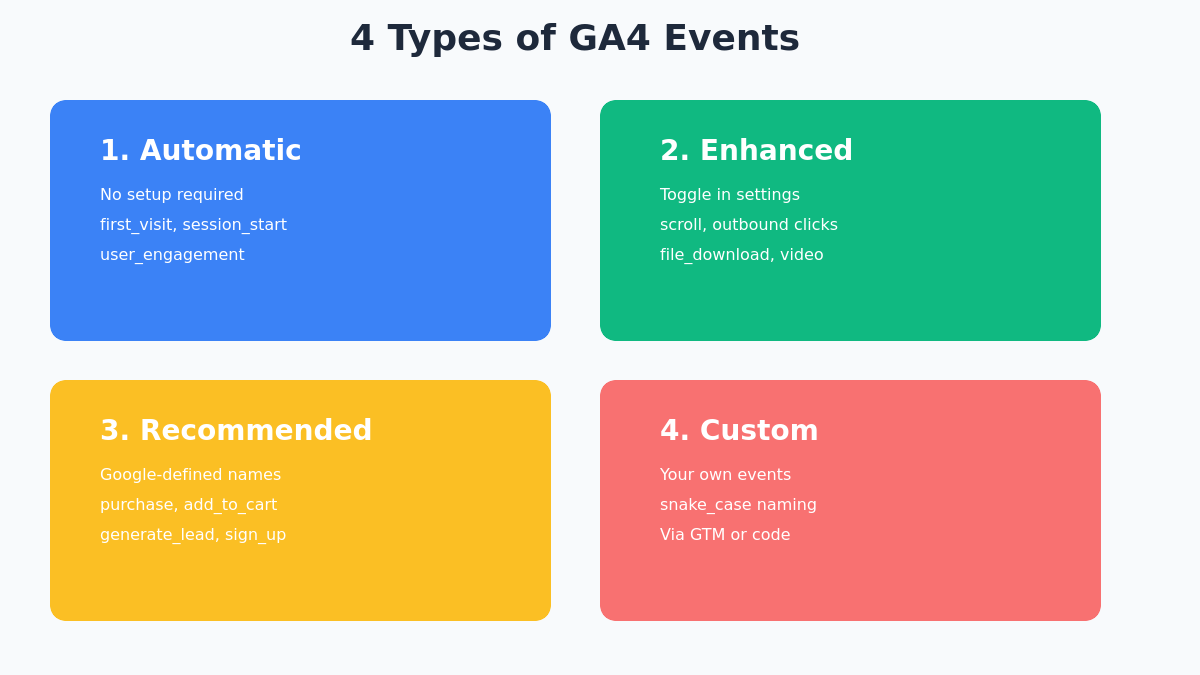
The 4 Types of GA4 Events
GA4 organizes events into four categories. Understanding these will save you hours of unnecessary custom implementation.
Automatically Collected
Fire without any setup. Install the GA4 tag and these work immediately.
Setup: NoneEnhanced Measurement
Toggle on in GA4 property settings. No code changes required.
Setup: ToggleRecommended Events
Predefined names and parameters that unlock special GA4 reports.
Setup: CodeCustom Events
Build your own events when none of the above fit your specific needs.
Setup: Code1. Automatically Collected Events
These fire without any setup. Just install the GA4 tag and they work.
| Event | When It Fires |
|---|---|
first_visit | User’s first visit to the site |
session_start | When a session begins |
user_engagement | When page is in focus for 10+ seconds |
page_view | Each page load (with enhanced measurement) |
Pro tip: Don’t recreate these manually. I’ve seen implementations where teams built custom session_start tracking—completely unnecessary and causes data duplication.
2. Enhanced Measurement Events
Toggle these on in your GA4 property settings. No code required.
Go to: Admin → Data Streams → [Your Stream] → Enhanced Measurement
| Event | What It Tracks | Enable? |
|---|---|---|
scroll | 90% page scroll depth | Yes |
click (outbound) | Clicks to external domains | Yes |
file_download | PDF, DOC, ZIP downloads | Yes |
video_start/progress/complete | YouTube embeds | If using YT |
form_start/submit | Form interactions | Test first |
site_search | Internal search queries | Configure URL param |
Warning about form tracking: Enhanced measurement form tracking can be unreliable. It triggers on any form submit, including newsletter popups and search boxes. For critical forms (lead gen, checkout), implement custom tracking instead.
3. Recommended Events
Google provides a list of recommended events with predefined names and parameters. Use these whenever possible—they unlock special reports and integrations.
For e-commerce:
view_item— product page viewadd_to_cart— item added to cartbegin_checkout— checkout initiatedpurchase— transaction completed
For lead generation:
generate_lead— form submissionsign_up— account creationlogin— user login
For content:
share— social sharingsearch— search performed
4. Custom Events
When none of the above fit your needs, create custom events. But follow these rules:
- Use
snake_case(lowercase with underscores) - Keep names under 40 characters
- Be specific:
newsletter_signupbeatssignup - Don’t prefix with
ga_orgoogle_(reserved) - Document everything in a tracking plan — our Measurement Plan Wizard generates one based on your business type and goals
Examples of good custom events:
pricing_calculator_used
demo_video_watched
chat_started
quote_requested
pdf_guide_downloaded
Implementing Events with GTM
Google Tag Manager is the cleanest way to implement GA4 events. Here’s the standard workflow.
Step 1: Set Up the Data Layer
The data layer is a JavaScript array that passes information from your website to GTM. It’s the bridge between your site and your tags.
// Basic data layer push
window.dataLayer = window.dataLayer || [];
dataLayer.push({
  'event': 'form_submission',
  'form_name': 'contact_form',
  'form_location': 'footer'
});
Place data layer pushes in your site code wherever the action happens—form submissions, button clicks, video plays, etc.
Step 2: Create a Trigger in GTM
Triggers tell GTM when to fire your tag.
- Go to Triggers → New
- Choose Custom Event
- Enter the event name exactly as pushed (e.g.,
form_submission) - Save the trigger
Step 3: Create the GA4 Event Tag
- Go to Tags → New
- Choose Google Analytics: GA4 Event
- Select your GA4 Configuration tag
- Enter the Event Name (this appears in GA4 reports)
- Add Event Parameters to pass additional data
- Assign your trigger
- Save and test
Example: Tracking a Lead Form
Here’s a complete example for tracking a contact form submission.
1. Data layer push (on your site):
// Fire this when form submits successfully
dataLayer.push({
  'event': 'generate_lead',
  'lead_source': 'contact_form',
  'form_id': 'main_contact',
  'page_location': window.location.href
});
2. GTM Variables:
Create Data Layer Variables for lead_source and form_id to use in your tag.
3. GA4 Event Tag settings:
| Setting | Value |
|---|---|
| Event Name | generate_lead |
| Parameter: lead_source | {{DLV – lead_source}} |
| Parameter: form_id | {{DLV – form_id}} |
Event Parameters: Adding Context
Events tell you what happened. Parameters tell you the details.
Every event can have up to 25 custom parameters. Use them to add context:
| Event | Useful Parameters |
|---|---|
purchase | value, currency, transaction_id, items[] |
generate_lead | form_name, lead_source, page_section |
video_complete | video_title, video_duration, video_provider |
button_click | button_text, button_location, destination_url |
Important: To see custom parameters in GA4 reports, you must register them as custom dimensions. Go to Admin → Custom Definitions → Create Custom Dimension.
Setting Up Key Events (Conversions)
Not all events are equal. Key events (formerly called conversions) are the actions that matter most to your business.
To mark an event as a key event:
- Go to Admin → Events
- Find your event in the list
- Toggle Mark as key event
Or create it directly in Admin → Key events → New key event.
What should be a key event?
- Form submissions (leads)
- Purchases
- Account sign-ups
- Demo/trial requests
- Page views
- Scrolls
- Button clicks (unless directly tied to value)
Key Events
High-value actions tied to business outcomes
- purchase
- generate_lead
- sign_up
- demo_request
- begin_checkout
Regular Events
Informational actions for analysis only
- page_view
- scroll
- click
- file_download
- video_start
Testing with DebugView
Never publish tracking without testing. GA4’s DebugView shows events in real-time.
How to Enable Debug Mode
Option 1: GTM Preview Mode
Click Preview in GTM. Events fired during preview automatically appear in DebugView.
Option 2: Chrome Extension
Install the Google Analytics Debugger extension and enable it.
Option 3: URL Parameter
Add ?debug_mode=true to any URL on your site.
What to Check in DebugView
- Event name appears correctly
- All parameters are populated
- No duplicate events firing
- Events fire at the right moment (not too early, not too late)
Common GA4 Event Tracking Mistakes
Event Naming Convention Template
Adopt this naming structure for consistency:
Rules:
- Always lowercase
- Use underscores, not hyphens or camelCase
- Object first, then action
- Be specific but concise
- Document in a tracking plan spreadsheet
Quick Reference: Event Limits
| Limit | Value |
|---|---|
| Unique event names | 500 per property |
| Parameters per event | 25 |
| Event name length | 40 characters |
| Parameter name length | 40 characters |
| Parameter value length | 100 characters |
| Key events | 30 per property |
Start Tracking What Matters
GA4 event tracking isn’t complicated once you understand the model. Start with enhanced measurement, add recommended events for your business type, and only create custom events when necessary.
The goal isn’t to track everything—it’s to track the right things with enough context to make decisions.
Your next step: Audit your current GA4 setup. Check which enhanced measurement events are enabled, verify your key events are firing, and test everything in DebugView.
Related reading: